For Tuwa 1.7.6 · iPhone
Connect a coding agent
Coding agents use the same connector and the same URL as the Claude and ChatGPT apps. They read your Tuwa data as text. They do not show the day's card.
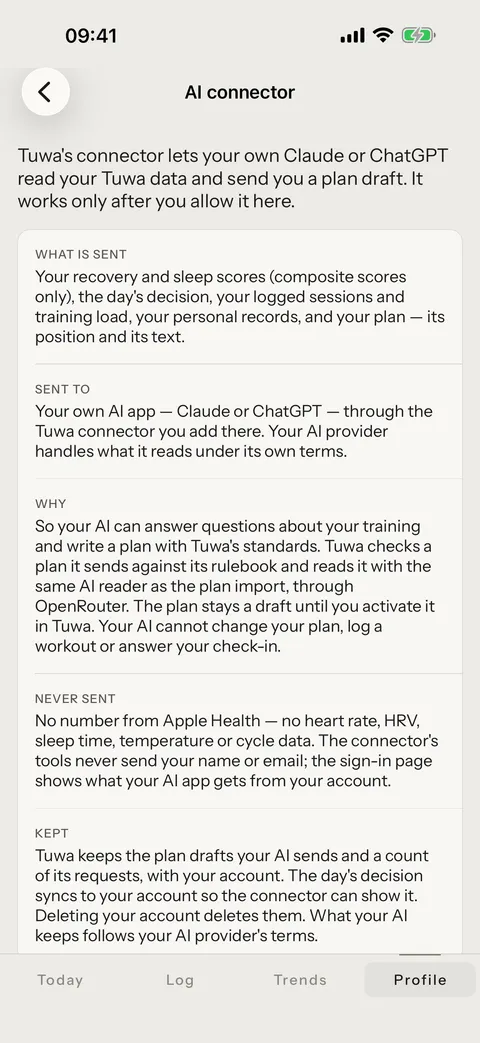
1. Turn it on in Tuwa
- Open Profile › Legal › AI connector.
- Read What is sent, Never sent and Kept.
- Turn on Allow the AI connector. Until you do, Tuwa gives your agent nothing.
2. Add Tuwa to your agent
Claude Code
Run this in your terminal. --scope user makes Tuwa available in all your projects.
claude mcp add --transport http --scope user tuwa https://mcp.tuwa.app/mcpThen start Claude Code, run /mcp, select tuwa and choose to authenticate. Your browser opens.
Codex
Run this in your terminal. Your browser opens by itself.
codex mcp add tuwa --url https://mcp.tuwa.app/mcpIf the browser does not open, or you signed out later, run:
codex mcp login tuwa3. Sign in and allow
A Tuwa page opens at tuwa.app. Sign in the way you sign in to the app — Apple, Google, or your email with your password or a one-time code — and choose Allow.
4. Ask your agent
Ask, for example: "What's on my plan today in Tuwa?"
What the agent can read, what it can send and what it never gets are the same as for Claude. A plan draft waits in the app until you activate it.
Disconnect
- In Tuwa: Profile › Legal › AI connector, turn off Allow the AI connector. From then on the connector gives your agent nothing more.
- In your agent, run one of these:
claude mcp remove --scope user tuwacodex mcp logout tuwa
codex mcp remove tuwaIf it does not connect
- Your AI says "Tuwa needs your permission first". In Tuwa, open Profile › Legal › AI connector and turn on Allow the AI connector. Then pull down on Today so the permission syncs to your account, and try again.
- Your AI cannot register with the sign-in service, or shows a 404. Check the URL. It must be exactly
https://mcp.tuwa.app/mcp, with no period at the end. A period at the end gives a 404. - You cannot sign in. Use the method you use in the Tuwa app: Apple, Google or the same email. If you lost your password, choose Forgot your password? If the page does not return you to your AI app, start the connection again.
- It connected, but your AI does not use Tuwa.Run /mcp and check that tuwa shows as connected.
- Still stuck? Write to support@tuwa.app. Tell us which AI app you use and the words it shows.