For Tuwa 1.7.6 · iPhone
Quick start
You need an iPhone with iOS 17 or later. Apple Health data from a watch or ring is optional; Tuwa works on logged training alone and adds your readings when it has them.
Drawn screens repeat the app's words. Pictures marked "demo account" are captures of the real app with demo data.
1. Install and answer the first questions
Get Tuwa from the App Store and open it. The first screens ask what breaks your training, how your week splits and what happened the last time you trained through deep fatigue. Choose your answers and tap Continue. Already have an account? Tap Already have an account? Log in.
2. Connect Apple Health
The screen Read your last 90 days. asks to read heart rate variability, resting heart rate and sleep. Tap Read my data and allow access in the Apple Health sheet, or tap Skip for now.
- Tuwa only reads Apple Health; it never writes to it. Raw readings never leave your phone. Only composite scores sync to your account.
- With no history yet, the next screen says so and explains what happens next: your own baseline needs about 14 mornings of readings.
The next screen, Your readiness., shows your first reading.
3. Your plan
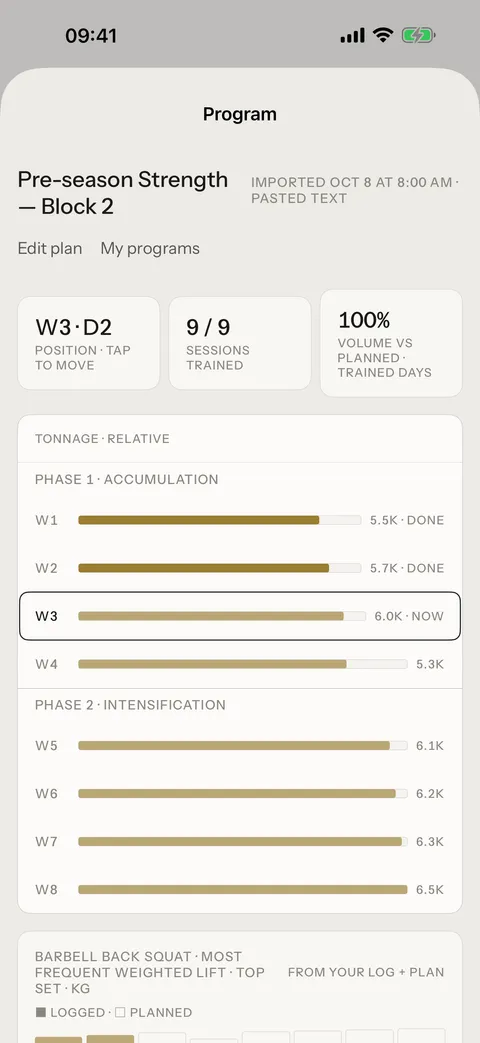
Tuwa reads your program and adjusts each day from your body. It never writes the program. Pick one:
- I have a plan — a file, a photo or pasted text. It opens right after your account is made (step 5).
- I don't have one yet — this opens Build it with your AI:
- Tap Copy the prompt.
- Tap Open Claude or Open ChatGPT and paste the prompt. Your AI reads Tuwa's plan-writing skill, asks you about your training a few questions at a time, and writes the first phase in Tuwa's import format. Tuwa sends nothing to your AI on this route.
- Back in Tuwa, tap I have my plan now. You paste the plan after your account is made.
Then answer How long have you trained with a written plan? (None · Under 6 months · 6 months to 2 years · Over 2 years) and tap Continue. Later skips the plan for now.
4. Make your account
On Keep this. Make an account. choose Sign in with Apple, Continue with Google or Continue with email (name, email and a password of at least 8 characters, then Create account).
Next comes the subscription screen. Subscribe, or tap Continue free — it is always there.
5. Bring your program
If you chose a plan in step 3, the sheet Bring your program opens now.
- Pick a door: Paste it (text), PDF (your coach's file) or Photo (a whiteboard or a page).
- Tap Read my program. The first time, Tuwa asks for AI processing: your program text is read by an AI service to turn it into weeks, days and sets. Tap Allow, or Not now to stop here. No Apple Health data is ever sent.
- Check what Tuwa read. If something needs a look, it says Check before import. Tap Import as read.
- If the file has no length, answer How long do you intend to run it?
- Choose when week 1 starts: Starts next Monday (the default) or Starts today. On a Monday there is no choice.
The tour One loop, every day. follows. Tap Start training.
6. Each morning: the check-in
The first time you open Tuwa on a day before noon, the Morning check-in opens by itself: four 1–5 ratings (Sleep quality, Muscle soreness, Energy / mood, Stress level). Tap Save, or Cancel to skip it. After noon it stays on Today as How are you feeling today?
7. Today: read the day card
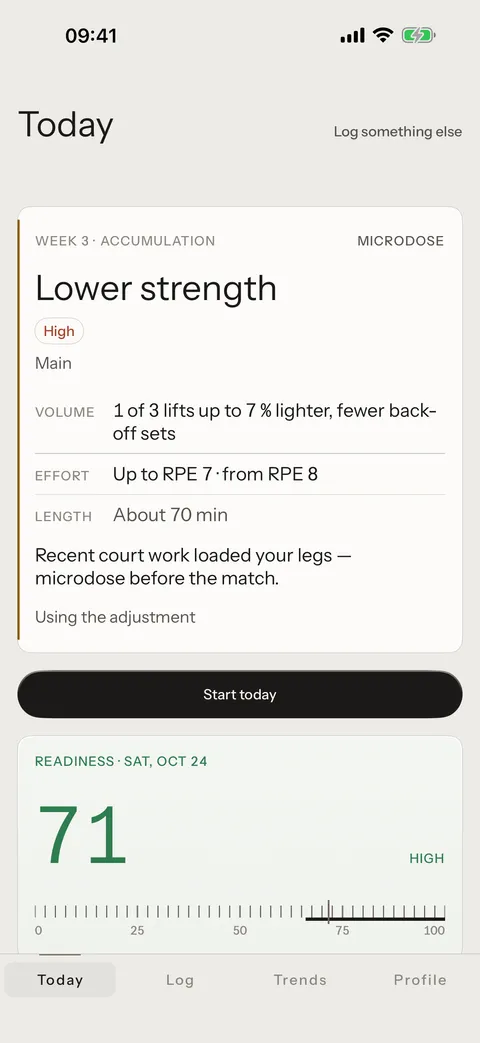
The Today tab opens on the day card. It names the kind of day (for example Strength day) and its dose in words — Volume, Effort and Length — against your plan. The numbers live in the brief.
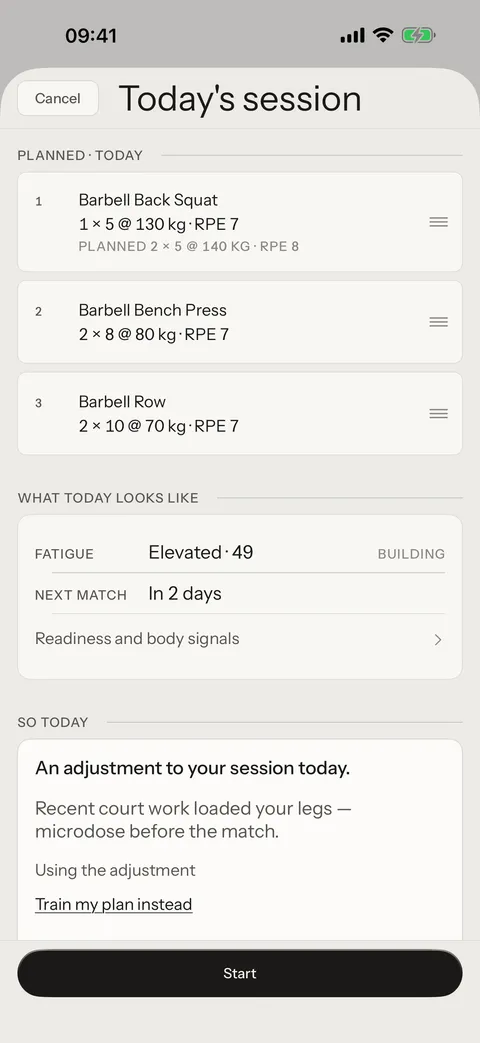
- Tap Start today. The brief Today's session opens: What today looks like (your readings), So today (the day's suggestion and its reason) and your exercises, planned against today.
- If the brief suggests a change, it shows two equal choices: the adjustment (for example a lighter top set or fewer back-off sets) and Keep my plan. You choose. On a steady day there is nothing to choose.
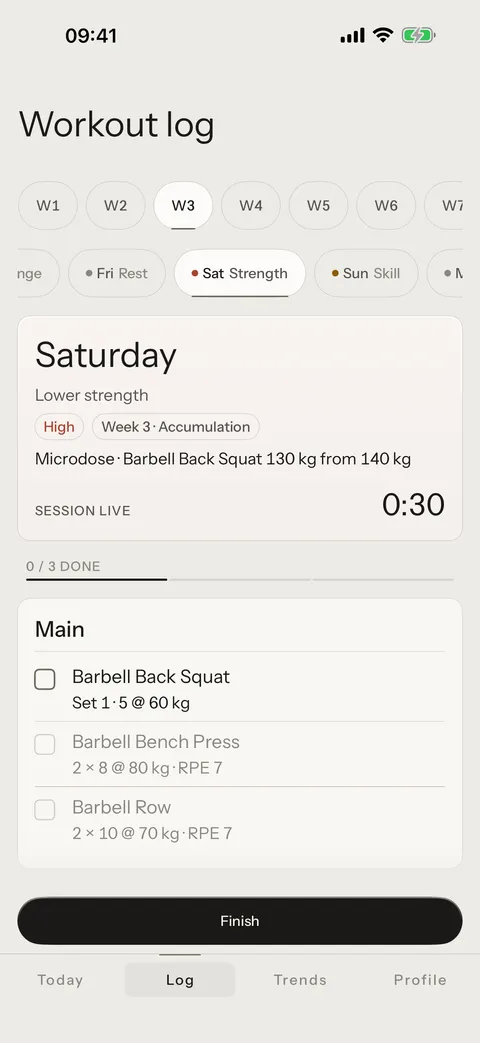
- Tap Start. The session goes live on the Log tab.
8. Log: run the session on the Day Card
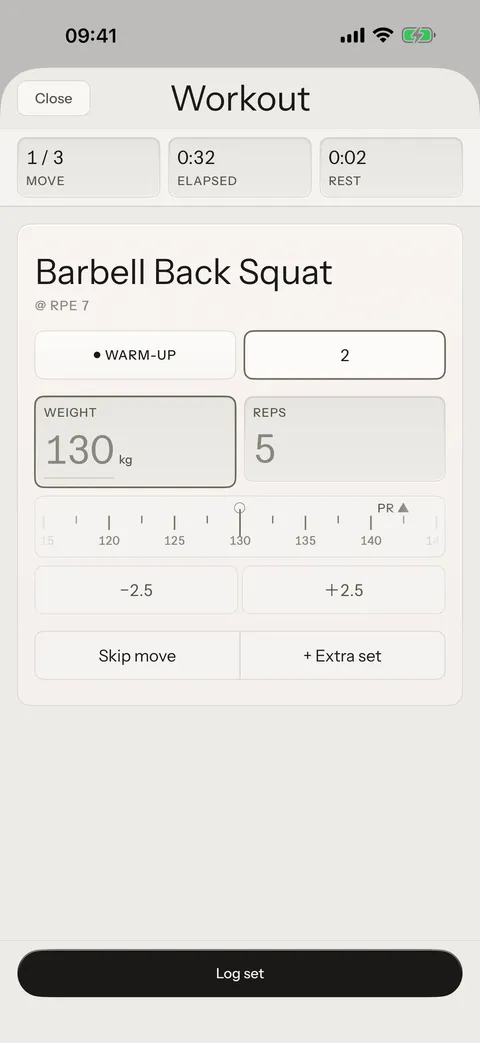
- The Day Card shows Session live. Tap a movement to open its plate.
- Do the set and tap Log set. Skip move skips the movement.
- A drill with no weight logs in one tap (Tap to log as planned); tap again to undo.
- When you are done, tap Finish. How hard was this session? is optional; then tap Finish to save.
The session appears under History on Log and Recent sessions on Today, and the day card shows Done today.
No plan yet?
Today shows Bring your program and Start unplanned. On Log, Start session offers a Blank session, Describe a workout in words (you type the session; Tuwa turns it into a draft you check) or From a template.
Next: add Tuwa to your AI — Claude, ChatGPT or a coding agent — or read the help.