For Tuwa 1.7.6 · iPhone
Connect ChatGPT
With the connector, ChatGPT can read your Tuwa readings, sessions and plan, show the day's card in the chat, and send you a plan draft to review. Tuwa still makes the day's go, modify or hold decision in the app. The connector is free and off until you turn it on.
The ChatGPT pictures on this page are drawings, not screenshots. ChatGPT can change its screens, so follow the words in bold.
What you need
- A Tuwa account and Tuwa 1.7.6 or later on your iPhone.
- ChatGPT on the web. OpenAI's help page says you cannot connect a custom MCP server on mobile.
- A plan that allows it. OpenAI's help page names three cases:
- Pro: read and fetch permissions only, so ChatGPT may not be able to send you a plan draft.
- Business: only admins and owners can add a server.
- Enterprise and Edu: admins and owners, and members an admin permits.
1. Turn it on in Tuwa
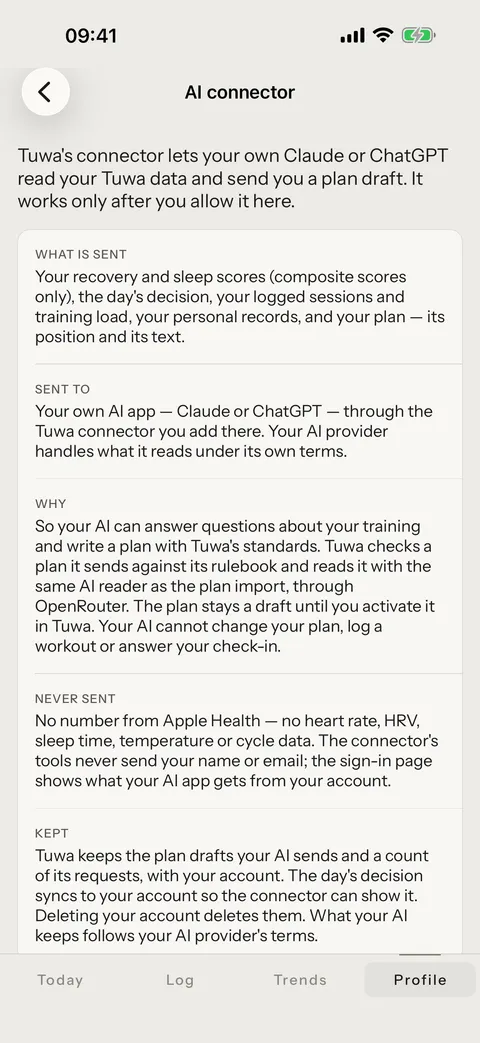
- Open Profile › Legal › AI connector.
- Read What is sent, Never sent and Kept.
- Turn on Allow the AI connector. Until you do, Tuwa gives your AI app nothing.
2. Add Tuwa in ChatGPT
- Open
chatgpt.com/plugins. Select the plus button, then Add custom MCP server. You do not need to turn on Developer Mode first.
- Name:
Tuwa. Connection:https://mcp.tuwa.app/mcp. Authentication: OAuth. - ChatGPT shows a warning for each custom server. Read it and select I understand and want to continue.
- Select Create as a plugin, check the tools it found, then install the plugin.
Tuwa is not in ChatGPT's plugin directory today, so add it by this URL.
3. Sign in and allow
A Tuwa page opens at tuwa.app. Sign in the way you sign in to the app — Apple, Google, or your email with your password or a one-time code — and choose Allow.
4. Ask ChatGPT
Start a new chat. Type @ in the prompt box, select Tuwa, and ask, for example: "Where am I in my plan?" Your choice applies to that message, so type @ again when a later question needs new data.
What ChatGPT can read, and what it never gets
- It can read: your recovery and sleep scores (composite scores only), the day's decision, your logged sessions and training load, your personal records, and your plan — its position and its text.
- It can send: a plan draft. The draft waits for you: a row A plan arrived from your AI · Review appears on Today and Log. Open it, check the plan, then tap Activate this plan or Dismiss this draft. Tuwa never activates a draft by itself.
- It cannot: change your plan, log a workout or answer your check-in.
- Never sent: no number from Apple Health — no heart rate, HRV, sleep time, temperature or cycle data.
The full list of tools is on the connector page; what is kept is in the Privacy Policy.
Disconnect
- In Tuwa: Profile › Legal › AI connector, turn off Allow the AI connector. From then on the connector gives your AI nothing more.
- In ChatGPT: open Plugins and remove or disconnect Tuwa.
If it does not connect
- Your AI says "Tuwa needs your permission first". In Tuwa, open Profile › Legal › AI connector and turn on Allow the AI connector. Then pull down on Today so the permission syncs to your account, and try again.
- Your AI cannot register with the sign-in service, or shows a 404. Check the URL. It must be exactly
https://mcp.tuwa.app/mcp, with no period at the end. A period at the end gives a 404. - You cannot sign in. Use the method you use in the Tuwa app: Apple, Google or the same email. If you lost your password, choose Forgot your password? If the page does not return you to your AI app, start the connection again.
- It connected, but your AI does not use Tuwa.Type @ and select Tuwa. ChatGPT applies your choice to that one message, so type it again when you ask for new data.
- Still stuck? Write to support@tuwa.app. Tell us which AI app you use and the words it shows.